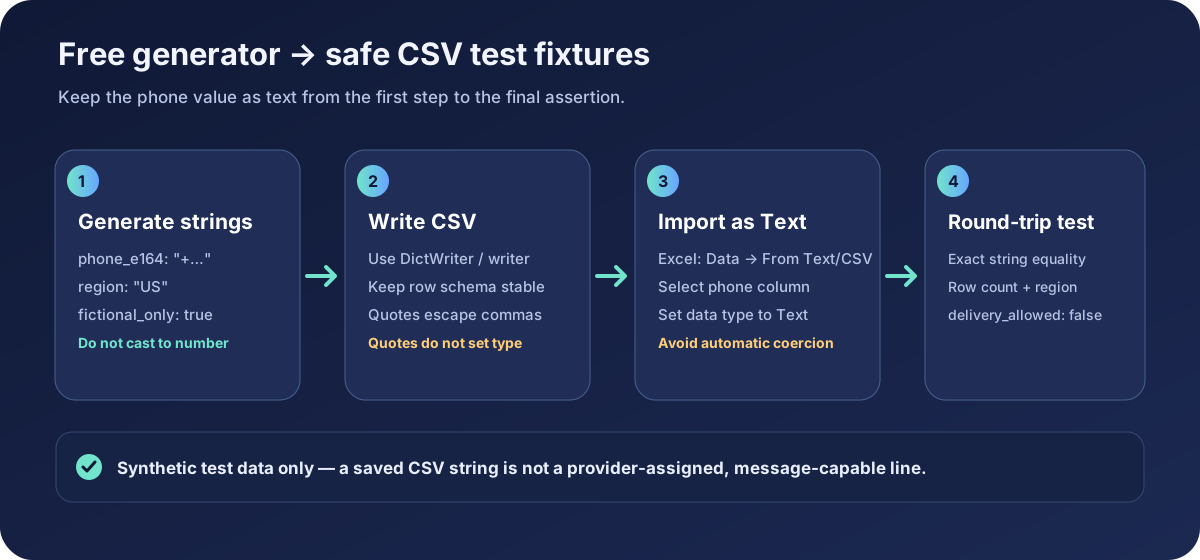
Why a phone number must stay text
Applications do not add or multiply phone numbers. A value may begin with a zero, include a leading plus sign, vary in length by region, or exceed the precision of a spreadsheet's numeric cell. Converting it to a number can change the test input before your phone-field parser sees it.
Microsoft documents that Excel can remove leading zeros and convert long numeric-looking strings to scientific notation; values with 16 or more digits can lose precision. Once a character has been discarded, changing the cell's display format cannot reconstruct the original value. Import the CSV deliberately and set the phone column to Text before loading it.
Use examples only from a documented fictional range and mark them non-deliverable. NANPA keeps 555-0100 through 555-0199 reserved for entertainment and advertising; Ofcom publishes separate ranges for drama, including 07700 900000 through 07700 900999. Such examples help exercise formatting without pretending that a generated string is an assigned service line.
CSV quotes do not define a text column
CSV quotes protect fields that contain commas, quotation marks or line breaks. They are syntax, not a type declaration. A quoted phone value can still be inferred as a number when a spreadsheet opens the file. Keep the raw CSV as a text exchange format, then choose the column type in the importer.
| Handoff | Failure to watch for | Control and assertion |
|---|---|---|
| Generator to fixture | A numeric cast drops the plus sign or a leading zero. | Build the phone field as a string and keep region and fictional-only metadata beside it. |
| Fixture to CSV | Manual concatenation breaks fields containing delimiters or quotes. | Use a CSV writer; compare each parsed phone field to the original string. |
| CSV to Excel | Automatic conversion changes digits or display. | Choose Data → From Text/CSV and set the phone column's data type to Text before loading. |
| Excel to application | The workbook looks right while the saved CSV has changed. | Export, parse it again, and assert exact character equality and the expected row count. |
| Test delivery boundary | A fixture is mistaken for a reachable subscriber number. | Carry fictional_only=true and delivery_allowed=false; keep synthetic tests offline. |
Write a typed fixture export
The example uses two documented fictional values: the NANPA 555 entertainment range and Ofcom's UK drama mobile range. They are illustrative test data, not working lines. In JSON and application code, retain the field as a string:
{
  "fixture_id": "us-example-001",
  "phone_e164": "+12025550100",
  "region": "US",
  "fictional_only": true,
  "delivery_allowed": false
}
When creating a CSV, use a writer so the library handles delimiters and quoting. Python's CSV documentation recommends opening output with newline="" and documents DictWriter for named fields:
import csv

rows = [
    {"fixture_id": "us-example-001", "phone_e164": "+12025550100",
     "region": "US", "fictional_only": "true", "delivery_allowed": "false"},
    {"fixture_id": "uk-example-001", "phone_e164": "+447700900123",
     "region": "GB", "fictional_only": "true", "delivery_allowed": "false"},
]
fields = ["fixture_id", "phone_e164", "region", "fictional_only", "delivery_allowed"]

with open("phone-fixtures.csv", "w", newline="", encoding="utf-8") as output:
    writer = csv.DictWriter(output, fieldnames=fields, extrasaction="raise")
    writer.writeheader()
    writer.writerows(rows)

with open("phone-fixtures.csv", newline="", encoding="utf-8") as source:
    imported = list(csv.DictReader(source))

assert [row["phone_e164"] for row in imported] == [row["phone_e164"] for row in rows]
assert all(row["fictional_only"] == "true" for row in imported)
assert all(row["delivery_allowed"] == "false" for row in imported)
CSV readers return strings by default. Avoid converting these fields with int() or float(). If a spreadsheet is part of the workflow, import the raw file through its text-import flow with the phone column set to Text, save the result, export it again, and run the equality checks once more.
Use a round-trip check before the fixture reaches tests
- Save the expected phone string and row count in the test that creates the fixture.
- Check the raw CSV in a text editor before opening it in a spreadsheet.
- Import the phone column as Text; do not rely on double-clicking a CSV file.
- After editing or exporting, parse the CSV again and compare each string character-for-character.
- Validate the region and fictional-only flags, and confirm no delivery-enabled test path can consume these fixtures.
This workflow catches transport corruption separately from phone-number validation. For region-aware syntax, see the E.164 formatting guide; for fixture boundaries, see the country-aware fake-number guide.
Frequently asked questions
Why does Excel change phone numbers in a CSV?
Excel may infer a numeric type when it opens a CSV. Leading zeros can disappear and long values may be converted or lose precision. Import with Data → From Text/CSV and explicitly set the phone column to Text.
Do quotation marks force Excel to keep a phone value as text?
No. CSV quotes escape field content; they do not define a spreadsheet column type. Choose Text in the import step and check the exported file again.
Can a free phone number generator CSV receive a verification message?
No. A synthetic fixture is a string for testing input handling. It is not a carrier-assigned number or a live inbox. Use a provider's authorized test environment for delivery workflows.
How can I safely open test-number CSV data in Excel?
Use Data → From Text/CSV, set the phone column to Text in the import preview, then compare the imported and exported strings with the raw fixture source.
References and question signal
- Microsoft: Keeping leading zeros and large numbers
- Microsoft: Import or export text and CSV files
- Python: csv — CSV File Reading and Writing
- RFC 4180: Common Format and MIME Type for CSV Files
- NANPA: 555 line numbers and Ofcom: numbers for drama
- A public Excel question about phone numbers changing in CSV files during spreadsheet import/export (one user question only; not a frequency or policy source).